Overview
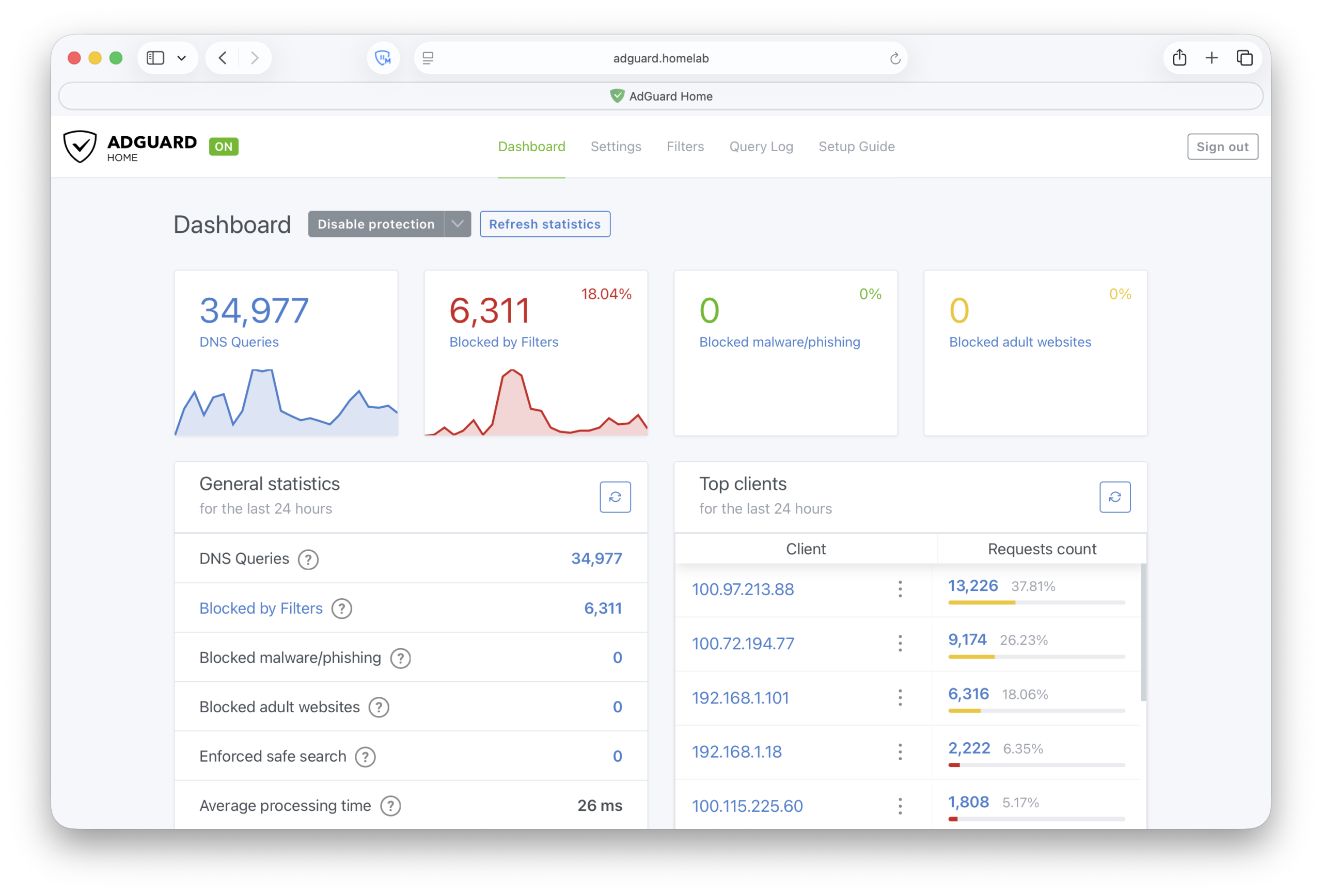
I wanted to know what my devices were actually doing on my network. That turned into more of a project than I expected: a Docker networking problem that required spinning up a new VM, a Tailscale DNS visibility issue that only got fixed by installing Tailscale on the server itself, and an internal HTTPS setup built on a private Root CA that lives offline in a VM on my Mac.
Why I Added AdGuard Home
I already had a homelab running on a Windows OptiPlex with Docker Desktop, Nginx Proxy Manager, and my own Root CA for local HTTPS. What I didn’t have was any visibility into what was actually happening on my network at the DNS level.
AdGuard Home is a self-hosted DNS server that handles ad and tracker blocking network-wide without touching individual devices, and keeps a query log showing exactly which device made which request. The filtering stays local and the logs stay local, even though allowed queries still forward to an upstream resolver.
Installing and Testing AdGuard Home
I started with Docker Desktop to see if it was worth pursuing before committing to anything more involved. docker-compose.yml, port 53 for DNS, port 3000 for the web UI, pointed a test device at the machine’s IP. Filtering worked immediately.
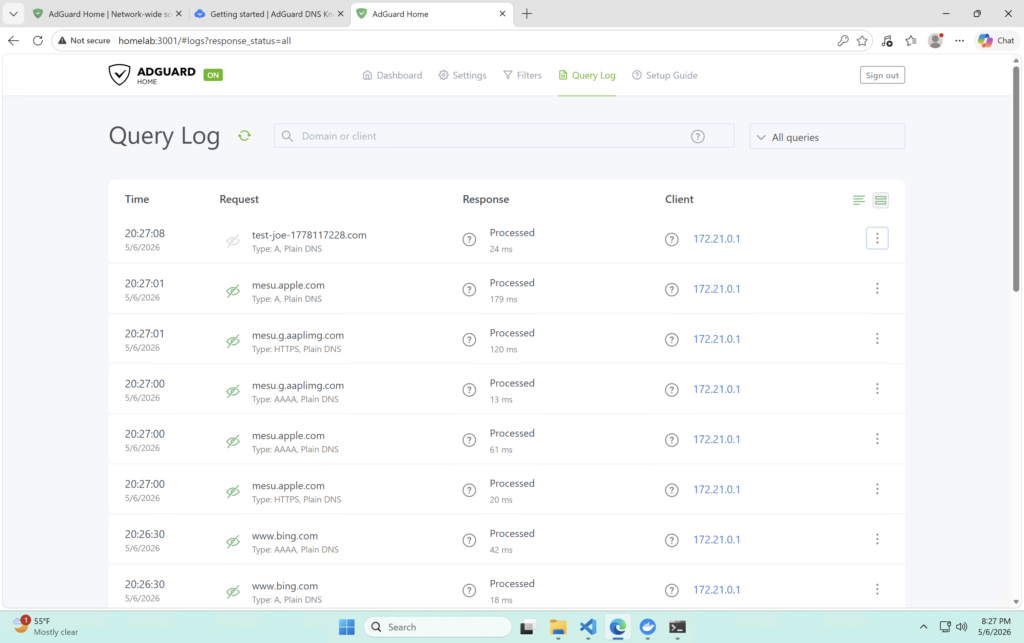
But the query log was wrong. Every single query was showing the same source IP, 172.21.0.1, the Docker bridge gateway. My laptop, my phone, my TV, all the same. Per-device visibility was the whole point, so this was a problem.
Why I Moved to Docker Engine
Docker Desktop on Windows runs inside its own Linux VM, and the default bridge networking means DNS queries hit Docker’s network interface before they reach AdGuard. By the time a query arrives, the original client source is gone. AdGuard just sees the bridge gateway.
The solution is host networking, where the container binds directly to the host’s network interfaces instead of going through Docker’s bridge. The problem is that host networking is a Linux-native feature. Docker Desktop on Windows doesn’t expose the underlying network stack the same way a real Linux host does.
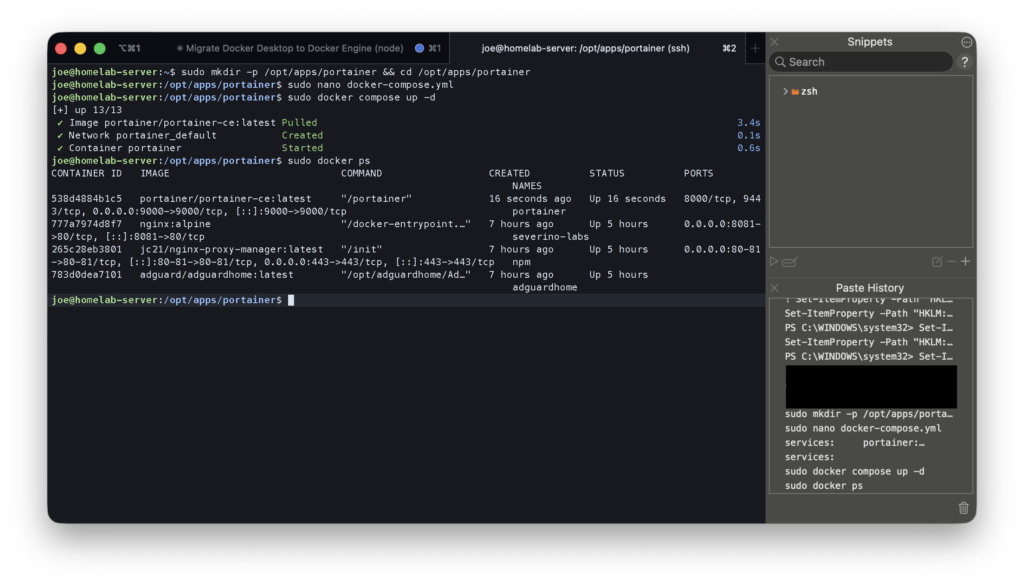
So I provisioned an Ubuntu Server VM on Hyper-V and moved AdGuard there. systemd-resolved was already sitting on port 53, which would immediately conflict, so I disabled it and made sure the VM still had working upstream DNS before starting AdGuard. The compose file is simple:
services:
  adguardhome:
    image: adguard/adguardhome
    network_mode: host
    restart: unless-stopped
    volumes:
      - ./conf:/opt/adguardhome/conf
      - ./work:/opt/adguardhome/work
No ports: block. With host networking the container binds directly to the VM’s interfaces, so AdGuard listens on port 53 and port 3001 without any port mapping.
While I was at it I also set the upstream resolver to Cloudflare over DNS over HTTPS. Plain DNS is unencrypted, so my ISP can potentially see DNS queries sent through its network even if the site itself uses HTTPS. DoH wraps those upstream queries in an encrypted HTTPS connection, so the DNS request contents stay private between my VM and Cloudflare. Local clients still send plain DNS to AdGuard on the LAN. The encryption only kicks in for AdGuard’s outbound queries after local filtering.
https://cloudflare-dns.com/dns-query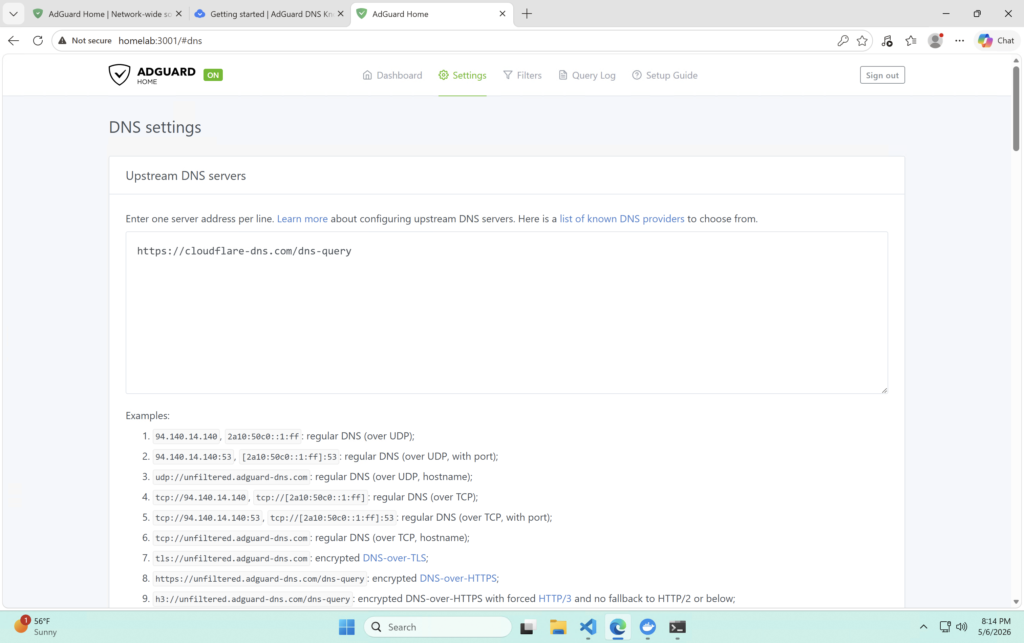
The query log changed immediately after the move. Real IPs, individual devices.
adguardhome has no IP in the network column because it’s using host networking, bound directly to the VM.Configuring DNS for Local and Tailscale Devices
Local Devices
My ISP doesn’t let you set a custom DNS server via DHCP from the router config, so I had to configure each device manually. I gave the Ubuntu Server VM a static IP at 192.168.1.233 first so clients had a stable target, then pointed each device at it. Not a great workflow but it gets the job done before I invest in a router.
Tailscale Devices
I run Tailscale across all my devices and wanted everything on the tailnet using AdGuard regardless of where it was.
My first attempt was setting the Tailscale DNS nameserver to 192.168.1.233, the VM’s LAN IP. That worked in terms of connectivity, but it brought back the same visibility problem. Tailscale devices routing DNS through a LAN IP end up going through the Windows homelab machine’s network stack to reach it, so everyone shows up as 192.168.1.13 in AdGuard (the homelab IP).
The fix was installing Tailscale on the Ubuntu Server VM itself. Without it the VM had no Tailscale IP, which meant any DNS path from the tailnet to AdGuard had to bounce through the homelab machine first. Once Tailscale was on the VM it got its own IP, 100.85.33.67, and I set that as the global nameserver in the Tailscale admin console with Override local DNS enabled. Each Tailscale device now has a direct peer path to the VM, so AdGuard sees the real client IPs.
One thing to get right on the VM side — the --accept-dns=false flag when bringing Tailscale up. The VM is the DNS server. If it accepted the tailnet DNS setting pointing back at itself, it would loop.
tailscale up --accept-dns=false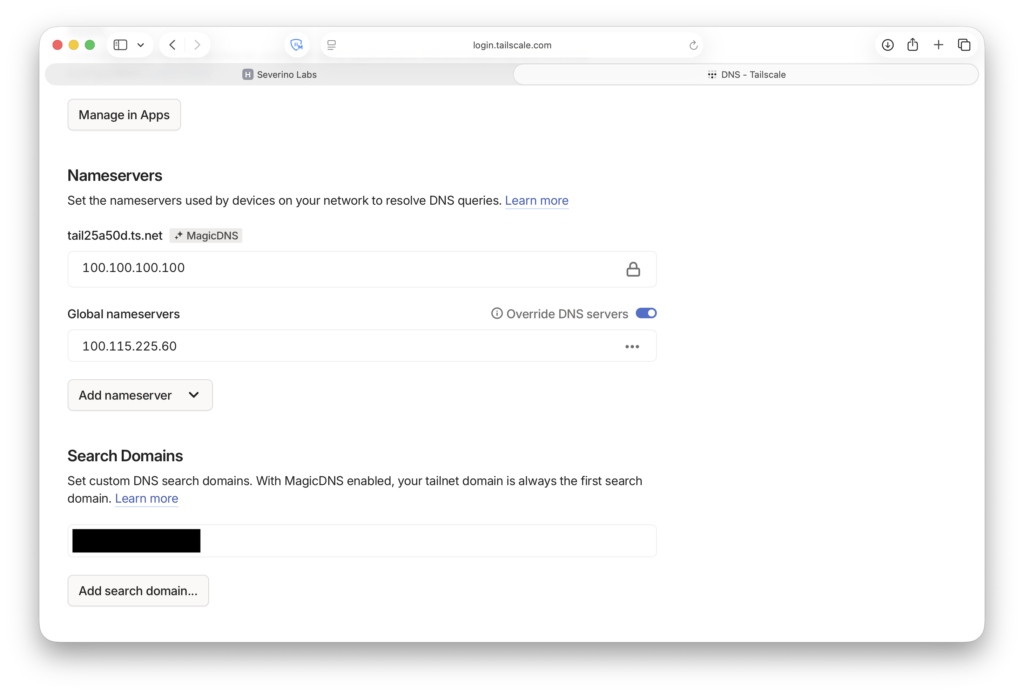
The ACL Problem
Both my Windows OptiPlex and the Ubuntu VM are tagged Tailscale nodes. Tagged nodes lose their user identity, so they’re not members of any user group and aren’t automatically allowed to talk to each other even if they share a tag. My Mac and phone could reach both machines fine, but the Windows homelab machine couldn’t reach the VM at all, which meant pointing its DNS at the VM’s Tailscale IP broke DNS on the Windows machine entirely.
The fix is a tag-to-tag grant in the ACL:
{
  "src": ["tag:homelab"],
  "dst": ["tag:homelab"],
  "ip": ["*"]
}
Adding Internal HTTPS and a Local Hostname
I wanted to reach the AdGuard admin UI at a real hostname with a valid cert instead of typing an IP and port.
I added a DNS rewrite in AdGuard pointing adguard.homelab to 192.168.1.233. I’m using .homelab as a private internal namespace, not a real TLD, just a convention. Since Nginx Proxy Manager is on the same VM, the rewrite resolves to the VM’s LAN IP and NPM proxies the request internally to AdGuard’s web UI on port 3001.
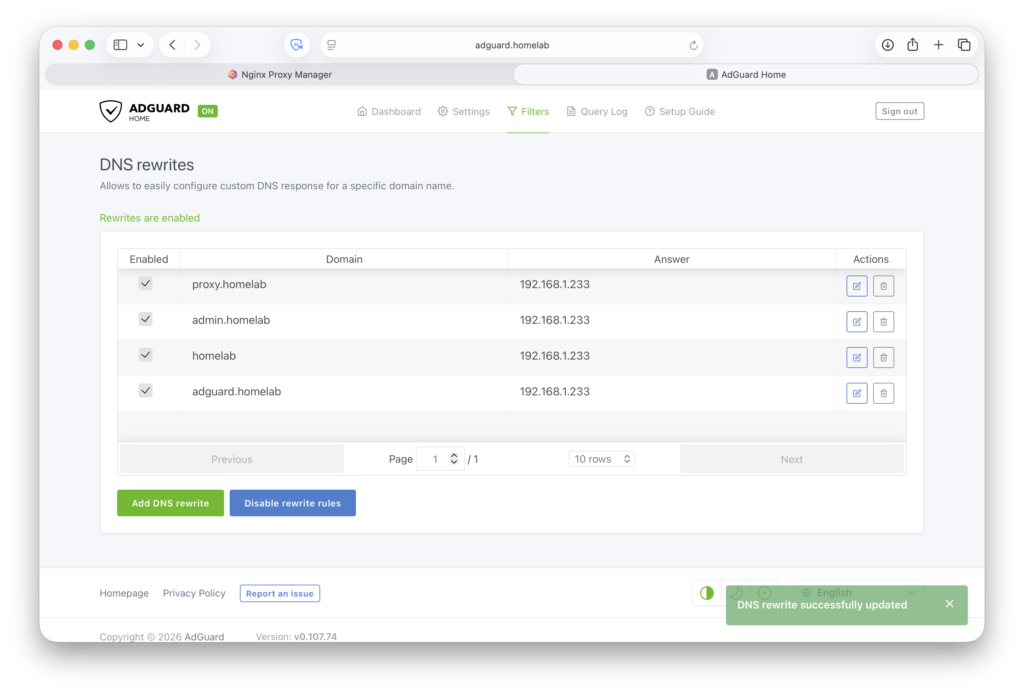
.homelab hostnames pointing at the VM.For the certificate I used my cert-gen script, which SSHes into an offline Debian VM running in UTM on my Mac. The CA VM uses a host-only network adapter, so it’s reachable from my Mac via SSH but has no path to the internet or the rest of the network. SSH is key-only and the CA private key is passphrase-protected. The VM only gets booted when I need to sign something. The script generates the key and CSR, has the CA sign the certificate, pulls the files back locally, and then the CA goes back offline.
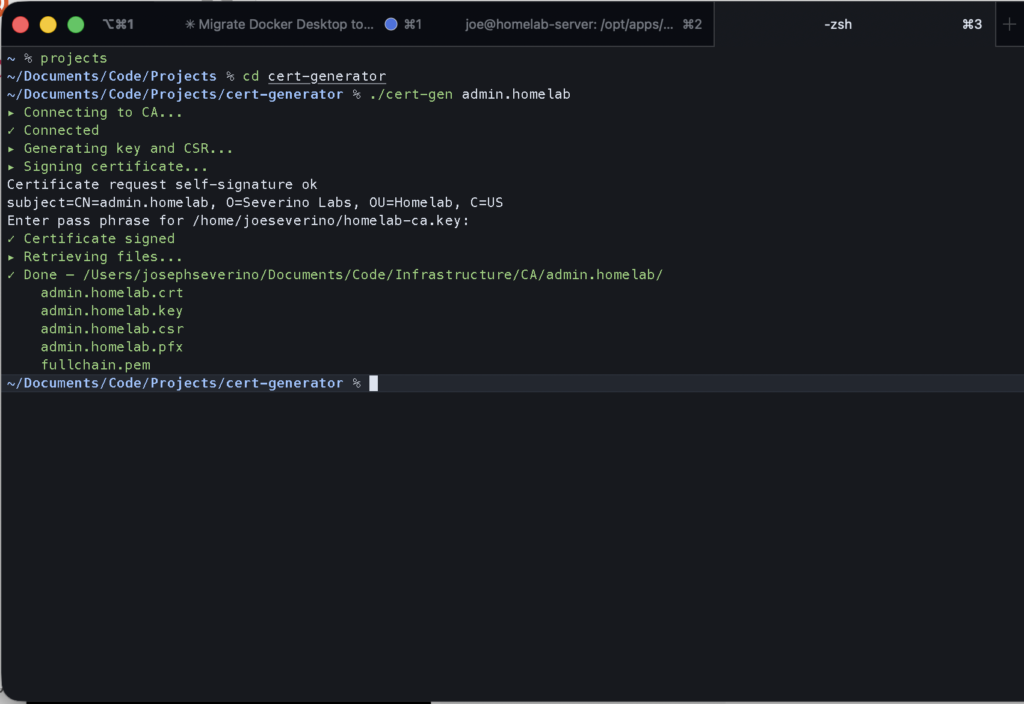
admin.homelab but the same workflow produced the cert for adguard.homelab.Cert and key go into NPM, proxy host set up for adguard.homelab pointing at 129.1268.1.233:3001.
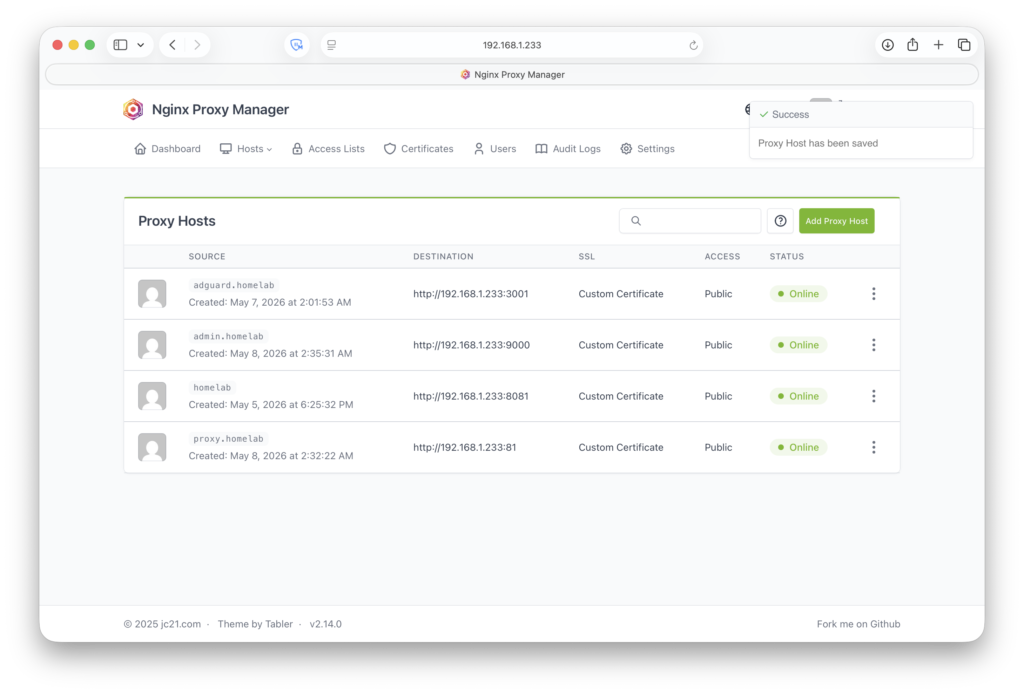
.homelab proxy hosts online with custom certs from the private Root CA.https://adguard.homelab now resolves, loads over HTTPS, and shows a trusted cert on any device that has the root CA installed.
Final traffic paths:
LAN clients / Tailscale clients
        ↓ DNS query
AdGuard Home (Ubuntu Server VM, port 53)
        ↓ allowed queries
Cloudflare upstream DNS (DoH)

Browser → https://adguard.homelab
        ↓ DNS resolves to 192.168.1.233
Nginx Proxy Manager (same VM, port 443)
        ↓ internal proxy
AdGuard Home admin UI (localhost:3001)
What I Learned from the Query Logs
Within minutes of pointing my first device at AdGuard, the Samsung TV started showing up in the query log making Netflix-related DNS requests. Not because anyone opened Netflix, just because I powered it on. Background startup traffic, completely invisible before.
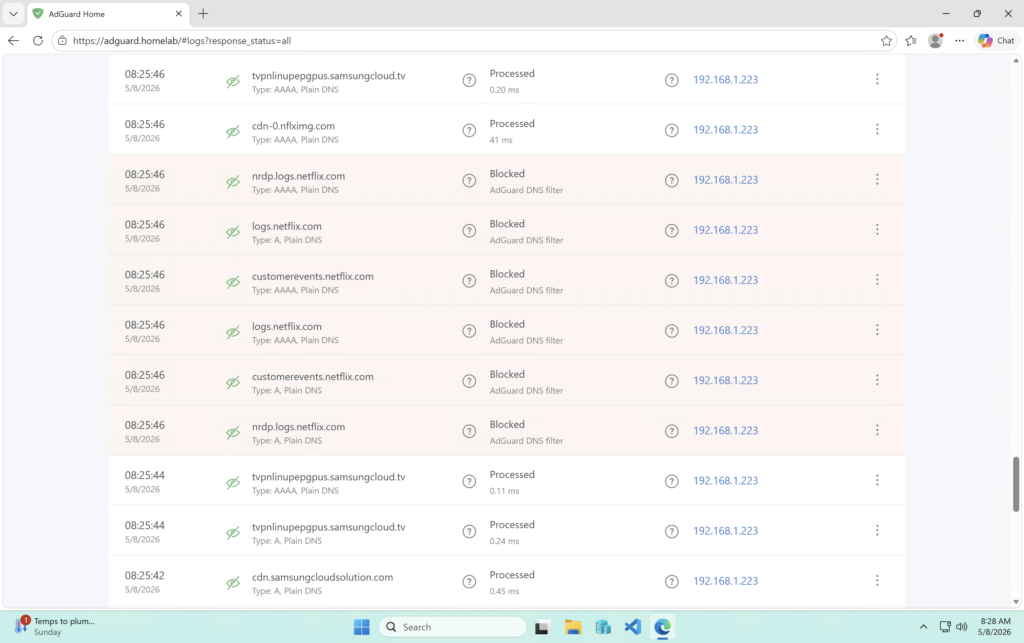
Every device does this. Update checks, telemetry pings, cloud sync endpoints. It’s constant and it’s from everything on the network. With real source IPs in the log it’s actually useful data instead of noise.
Installing AdGuard Home was the easy part. The real project was making sure DNS traffic took a path where the logs actually meant something.